
🎬How to Import an XML File in Alight Motion? [Complete Guide 2026]

Reviews
6.3M
Version
Latest
Downloads
200M+
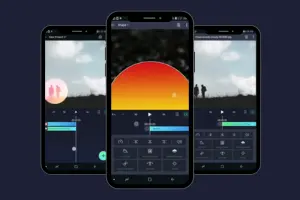
Mostly, you’ve seen XML files that creators use to create smooth effects, transitions, and advanced edits on YouTube, TikTok, and Instagram. If you are a beginner, you see these XML files and feel confused about how to use them in Alight Motion.
In this article, I will clear your confusion about XML files.
- How to import XML files in Alight Motion on Android?
- Why do XML files not work on iOS?
- How to export and create your own XML presets?
- How to fix the Common problem related to XML?
After reading this Article (post), you can import and export XML files on your devices. This will improve your video editing and save time.
What is an XML File in Alight Motion?

In Alight Motion XML file is an animation preset that saves project settings. It only contains settings, not media files like videos. It is also called a blueprint or recipe to edit different projects. An XML file is a small file that contains information about the project effects and its settings. It also contains settings like keyframes, layer positions, and color gradings.
The XML file does not contain videos or music, but only contains settings or instructions on how to create an effect.
Why Use XML Files in Alight Motion?
If you use XML files in Alight Motion, it gives a huge edge in editing.
⏱️ Save a Lot of Time
XML files save you time because you can do your work very easily in minutes. You can apply complex effects very easily, like shake, text animations, or transitions. So, due to the shortage of time and money, people prefer the XML files in Alight Motion.
🎬 Get Professional-Looking Edits
If you use XML files in your videos, then you can freely use high-quality presets made by exports. If you use these presets, which are in XML files, then your videos will look smooth and professional.
📘 Learn New Editing Skills
When you import the XML files for projects into your phone, you can learn from them. You can open the layers and keyframes of an XML file, which will guide you on how to make the advanced effects.
🔁 Easy to Share
If you make your own style or effects in your project, then you can easily share them with your friends using XML files. Sharing project styles or effects through XML files is very easy and collaborative.
How to Import an XML File in Alight Motion on Android?
In the following, I will guide you on how to import an XML file on Android. Most people want to use the import button, but it’s not a perfect method. You can import XML files in Alight Motion using the share option. Below, I am sharing the complete details.
Method 1: Import Using File Manager
This is the easiest and best method. Most people usually use this method because it works for all users.
📥 Step 1: Download the XML File
The first step is to download the XML presets file to your phone or any other device. You can buy or arrange an XML file from a creator, seller, or friend. When the download is complete, the file is saved in your mobile device.
📂 Step 2: Open File Manager
The 2nd step is that you will open the “File Manager” on your mobile. In some devices, it will be named as “My Files”.
🔍 Step 3: Find the XML File
In the third step, you will find the XML file in your “File Manager”. The XML file identifies that it ends with .xml.
📤 Step 4: Share to Alight Motion
In the 4th step, long-press the XML file different option will be shown. Click on share, then more options will be shown. Now select Alight Motion. When you select Alight Motion, the XML file will be shared with the Alight Motion App on your device.
✅ Step 5: Import Complete
When you share the XML file on your device, the sharing process will start. You will wait some time for the notification to appear on your mobile that the XML has been imported to your mobile.
🎬 Step 6: Open Alight Motion
Now open the Alight Motion app you will see the new project or preset at Alight Motion. This new preset is an XML that you imported. Now you can use this XML file for different projects.
Method 2: Import Through Google Drive
If someone shares an XML file with you on Google Drive. The process to import the XML file on your device is below.
- 📂 Step 1: Open the XML File: Open the Google Drive on your device and find the XML file.
- ⋮ Step 2: Tap Three Dots: When the XML file opens, click on the three dots in the top right corner.
- 📤 Step 3: Send a Copy: After clicking on the three dots, you will choose the option to send a copy.
- 🎬 Step 4: Choose Alight Motion: When you choose the send a copy option, different apps will show. You will choose Alight Motion.
- ✅ Step 5: Import Done: After this, you will wait for some time the XML file will automatically import to your Alight Motion app.
How to Import XML Files on iOS (iPhone & iPad)
The new iOS user problem is how to import XML files into Alight Motion. Now I tell you that you can not directly use an XML file on iOS(iPhone or iPad). The version of iOS Alight Motion does not support the XML files. We will use other alternative methods to share our presets instead of using XML files.
QR Code Method
If you want to share your project, then you will use special QR codes.
- 📂 Step 1: Open Alight Motion: We will open our Alight Motion app on an iOS device and open the project that we want to share.
- ➕ Step 2: Add an Element: Now we tap on the ➕ icon. After this, go to add an element option.
- 📷 Step 3: Select QR Code: Now, open the QR code option from the menu.
- 🔍 Step 4: Scan the Code: Now open the other mobile and scan that QR code.
- ✅ Step 5: Preset Imported: After this, you will wait for some time, and the preset will automatically import into your project.
Alight Cloud Link Method
If you want to share presets, then this is the most common and easiest way. Most of the creators of presets share the Alight Motion link.
- 🔗 Step 1: Tap the Link: In the first step, you will click on the Alight Motion link that the creator provided.
- 📱 Step 2: App Opens Automatically: When you click on the link, the Alight Motion app will automatically open.
- 📥 Step 3: Import the Project: After this, a notification or a pop-up message will appear on the screen. When you allow this, the project will be imported to your device.
- ✅ Step 4: Done: Now all done. You can use this project in your Alight Motion app.
How to Export XML Files in Alight Motion
You can also share your own presets and projects using XML files through Alight Motion. The complete process to export XML files is below.
- 🎬 Step 1: Finish Your Project: If you want to share any project through XML files, then the first step is to complete your project and give it a final touch.
- 📤 Step 2: Tap Share: When you complete your project, click on the share option or button, which is at the top right corner of the project.
- 📜 Step 3: Scroll Down: Many sharing options of the project will be shown on the screen. You should scroll down the screen.
- 📦 Step 4: Export Project Package: When you scroll down, you will see an option for “Export Project Package(XML).”
- ✅ Step 5: Export the File: After this, you will tap on export. Android will export an .xml file; on the other hand iOS device gives you a shareable link. Now you can easily share this xml file or link to your friends.
Common Issues & How to Fix Them?

If you are facing issues or problems related to XML files import and export donot woory here I am discussing the most common problems and their solutions.
❌ Issue: File Not Recognized / “Can’t open file.”
❌ Problem: When you open the download folder of your phone and click on XML, it does not open. If the file is not open, then this error exists
✅ Solution: When you try to open an XML file on your phone but it fails, then use this method, which solves your problem. In this method, you will long-press the XML file and tap on the share option. When you tap on the share option, select Alight Motion. The file will automatically share on your device.
❌ Issue: Import Option Not Showing
❌ Problem: If you are a beginner user of the Alight Motion app. You want to find the “Import XML” button, but can not see it in Alight Motion; it will confuse you.
✅ Solution: The import button is not where you think the process is below. First, you will go to the file manager option on your phone. Find the XML file and long-press it. After this, tap to share and select Alight Motion. Wait some time, the XML file will be exported to another device.
❌ Issue: App Crashing While Importing
❌ Problem: Sometime app crashes (closes) during the import of an XML file on your mobile. This may be very frustrating for you.
✅ Solution: This is a common problem that happened due to two main reasons.
The file is corrupted: The XML file may be corrupted or damaged. You should import the XML file from the trusted source or creator.
Your app version is old: The 2nd reason may be preset created in a new version of Alight Motion. The Alight Motion app, which you are using on your mobile, may old version. You just update your Alight Motion app, then use presets.
❌ Issue: Storage / Permission Problems
❌ Problem: Sometimes, when importing the XML files on your mobile, you may face an error. This error may be that you do not allow permission to your storage.
✅ Solution: To solve this problem, follow these steps. First, you go to your phone settings. Open the app settings. Select the Alight Motion app setting and select the permission setting. Now if the permission is off, then on it. Now you use the app as per routine.
❌ Issue: Unsupported XML Version
❌ Problem: Sometimes you see the problem “unsupported XML Version” on your mobile screen.
✅ Solution: When you show this error, it means that you are using an old version of Alight Motion. So, first update the Alight Motion version, then import the XML file.
✅ Pros & ❌ Cons of Using XML Files in Alight Motion
👍 Pros (Advantages)
- Huge Time Saver: If you want to make an eye-catching, attractive, and professional effect, then you can do it in a few seconds. So XML files help you a lot to do work very fast.
- Great Learning Tool: XML files are the best source for learning. You can open the XML files step by step and see how professional-level effects were made.
- Follow Editing Trends Easily: Another advantage of an XML file is that you can easily follow the trendy effects that professional editors use in their projects.
- Easy to Share: If you make a unique style, then you can easily share it with others using XML files.
👎 Cons (Disadvantages)
- Version Problems: This is a famous disadvantage of XML files. Suppose you have a preset in the latest version of the app, but the app installed on your mobile is an older version; then, XML will not work.
- Not Supported on iPhone (iOS): The iOS devices do not support XML files; therefore, new users of iOS devices are confused when they want to use XML files.
Conclusion
If you want to improve your editing skills, then you must learn how to import and export the XML files in the Alight Motion app on your mobile. In the Alight Motion app, the XML preset helps you to make fast and professional projects. These XML files may help you to apply speed effects, trendy shake effects, or smooth transitions on projects.
In this post, I discuss A to Z about XML files in the topic. I discuss the import, export, common issues, and pros & cons. Now you can learn with the help of thousands of presets and make the pro level projects.


![Alight Motion vs PicsArt: Which is the better app in 2026?-[Comparison]](https://alightmotionapp.co/wp-content/uploads/2025/12/Alight-Motion-3-768x432.webp "Alight Motion vs PicsArt: Which is the better app in 2026?-[Comparison] 8")

