
How to use Green Screen in Alight Motion? (Unlocked Advanced Chroma Key)

Reviews
6.3M
Version
Latest
Downloads
200M+
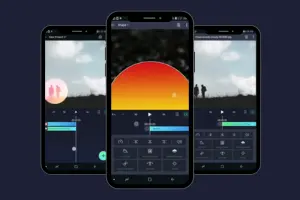
Chroma Key or Green Screen is a visual effect in Alight Motion. This type of effect is mostly used in movies. Suppose you record a video and now want to remove a specific part of the video. Then, you can use this tool and set the background according to your choice.
These techniques are primarily used in movies and TV shows. The actors record their scenes in front of a Green screen. After this, remove the background and set it according to your needs.
What is the chroma key (green screen)?
Chroma key is also called green screen. You can remove background color using this technique. Usually, people make the videos in front of a green or blue screen because they can remove these colors due to opposite skin tones. When you remove these colors, your video looks transparent.
After removing the background of the video using chroma key, you can adjust or fit a new background according to your choice. This choice may be an image or a video. I suggest you always use a wrinkle-free background.
Mostly, chroma key is used in movies. The actors record a video in front of a green or blue screen. After this, they edit through chroma key and set the background in the scene according to your choice.
Choosing the Key Color
In the first step, you should choose a color in a video that you want to remove. Most people choose the Green or Blue color to remove, but it depends on you which one you want to remove.
Now, to import the video or project into Alight Motion. After this, select the layer on which you want to work. The edit options will show on screen when clicking on the “FX” effects option.
After this, choose the eyedropper or color picker and select the color that you want to remove from the video background. When you select the color from the background, it will be removed.
Preparing the Video or Image Layer
Now you will set a new background as a video or images according to your choice. Now import the video or image that you want to adjust. After this, place it on a new layer of the timeline above the green screen video.
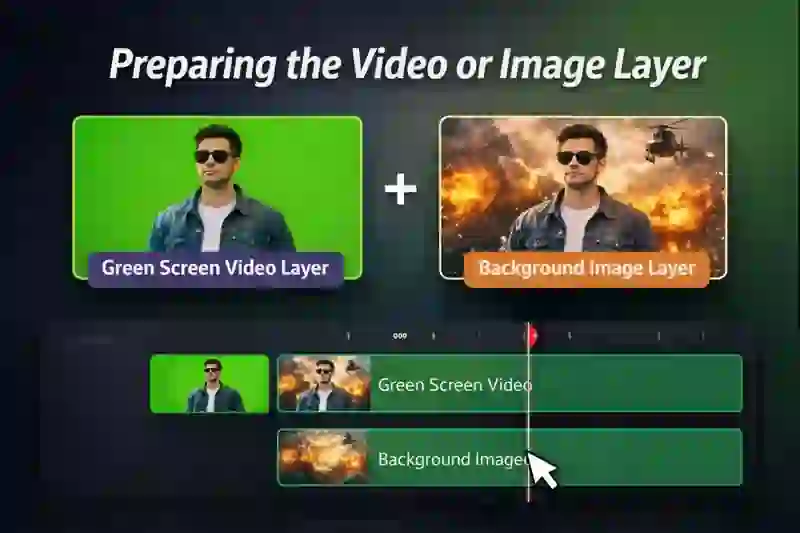
When you upload the background video or image to the timeline layer, then adjust its position behind the objects. I suggest you see the corners; no part of the background should be missed. Once you’re done this your video looks professional.
Applying the Green Screen Effect
After this, go to the Green screen video layer and open the settings. When you open the settings of Chroma key, increase the slider to 100%. After applying this setting, check the preview of your video or image.
If you see the video, it looks clear, then it’s best. If the corners or edges of an object look green, then this problem is called fringing. You can overcome this problem by increasing the Tolerance slider to remove extra green color and using the smoothing slider to make the edges soft.
Adjusting Key Settings
In Alight Motion, many advanced tools are available that help you make your project more realistic and clean.
- Spill Removal – Using this tool, you can remove green or blue color that reflects on objects or persons.
- Matte – This tool helps to make your object edges clear and soft.
- Alpha Tolerance – This tool helps you to remove fringe(Green lines) by adjusting transparency.
- Erode / Dilate – With the help of this tool, you can make the edges of objects smaller or bigger so that your object fits on the screen.
- Gamma – This is also an osam tool, with this you can control the brightness and color of your object so that it matches with background.
After every small change in the settings of your project, see the preview; sometimes it looks best or professional, then export it.
Fine-Tuning the Key
If you have a project and apply the green screen and lighting, but sometimes you may see small problems. You can see these problems on the green screen or on the transparent parts.
The following are some tips to improve your project:
- You can use masks manually to remove green spots that are not removed automatically.
- You can apply a color correction effect to this object and the background. After this, they look in the same lighting.
- You can use the crop tool if the edges are not clear.
- You can add a little blur to the object and background look smooth.
In the end, zoom in on the objects and the edges, and adjust these edges so that your object looks clean and smooth.
Working with Green Screen Footage
If you want to make the best videos, then record a video before the green screen, which gives you the best result in Alight Motion. I suggest you choose that video which is clear, in this way you can do editing much more easily.
I suggest you follow the tips below:
- I suggest you use a green or blue screen on which there are no wrinkles.
- Now, make sure that the light is equally spread on the object and background.
- Always keep in mind there is a distance between the object & background.
- During casting, do not fall shadows on the green screen.
- Always record using the high resolution of your camera.
If you set up your camera and lighting properly, it will save you time, and your chroma key will look more professional.
Troubleshooting Common Issues
Some common issues you may face using chroma key in Alight Motion are below, along with solutions:
Fuzzy Edges/Fringing – If you are facing the blurry edges issue, then increase the tolerance and use the erode function to clean the edges.
Green Spill on Subject – If there is a green color on the person or object, then turn on spill removal and also adjust your gamma settings.
White/Grey Areas – You may also face white or grey transparent areas issues, then use a lower alpha tolerance or increase the strength.
Grainy Background – If you are facing a noisy background, then use noise reduction and add some blur.
Moving Shadows – Sometimes you may face a moving shadows issue, then you should use masks or cut the subject around it carefully.
Reflections on Skin – If you face shiny reflections on a skin issue, then apply a little bit of blur to soften it.
Foreground Too Bright – Sometimes the foreground or subject looks too bright; to overcome this, use contrast to balance the light.
Composite Looks Fake – If you feel your video looks fake, then match the colors of the background and add blur.
When you fix all of the above issues, your video will look clean and professional.
Adding Effects and Enhancements
After using the green screen or chroma key effect, your video looks clean and professional. You can make your video more attractive by using the effects below.
- Motion Blur – When you add motion blur then it helps to mix the object and background. So your project looks natural.
- Color Filters – There are many color filters available; you can change them and create a happy, dark, or cinematic mood.
- Light Leaks – I suggest you add soft light for a stylish look.
- Fog Overlay – Always do such settings feel like in new place.
- Camera Shake – You can also add a handheld effect, and your object will seem more realistic.
- Sound Effects/Music – In this, you should make your video feel complete and cinematic.
Try different filters and presets in your projects that will take them to the next level. You also apply different effects to your videos, which makes your videos professional.
Exporting the Final Video
When you complete the chroma key editing, the final step is to export the project and share it on different platforms. Now, click on the top right corner to export the video. You can choose the quality or frame rate at which you want to export. Most people use the H.264 or HEVC format to export the video after the chroma key effect.
When your export of video is complete, you can save it to your device’s gallery. You can also share the video on different platforms like YouTube, TikTok, Instagram, and Facebook.
Pro Tips for Using Chroma Key (Green Screen)
If you want to use chroma key, then keep in mind the tips below:
- I suggest you use two advanced lights so that no dark spots show on the background.
- The other tip for you is to always remain 3 to 5 feet away from the green or blue screen during recording because no reflected light affects your clothes.
- If you want to use the chroma key effect, then do not wear a green or blue dress during recording because it disappears in editing.
- I suggest you record the videos in front of a green screen because cameras capture the green color very clearly, so always prefer the green screen over the blue screen.
- Always use the lighting that matches with background. For example, if you are making a video at night, then use soft light.
- You should remove the green edges by using the tolerance and spill suppression. If you remove these, then your background looks smooth.
Why the Chroma Key in Alight Motion is a Game Changer for Mobile Creators?
Chroma key is the best tool for mobile phone users. You can use this software very easily on a mobile. You will click the background, and it will be removed. You can set a background according to your choice, like a mountain, a river, or any other thing.
This is the best feature you can use this feature and make tutorial videos, music videos, with special effects. Alight Motion gives you this powerful tool of chroma key tool. After this, you do not need expensive software for your computer or Laptop. You can use the high-quality video using chroma key.
Conclusion
Alight Motion is one of the best video editing apps. It has all those features that you imagine. I have tested all the main features of this app these are the best. One of the best tools or features of this app is chroma key. By using the chroma key feature, you can advanced advanced-level videos. So my opinion is to use the Alight Motion app and not waste your money on expensive software.
Note: If you want to download the Alight motion app, then click on it.

![Alight Motion vs PicsArt: Which is the better app in 2026?-[Comparison]](https://alightmotionapp.co/wp-content/uploads/2025/12/Alight-Motion-3-768x432.webp "Alight Motion vs PicsArt: Which is the better app in 2026?-[Comparison] 5")


